Keyboard types by itself - Phantom presses
What are phantom presses?
Phantom presses occur when the keyboard registers key inputs on its own without any human or cat influence.
This can happen for several reasons:
- Unstable or insufficient power is being received by the keyboard
- External interference (magnetic or EMI sources )
-
Internal component issues (rust, corrosion, defective components)
Example video

Getting started with troubleshooting
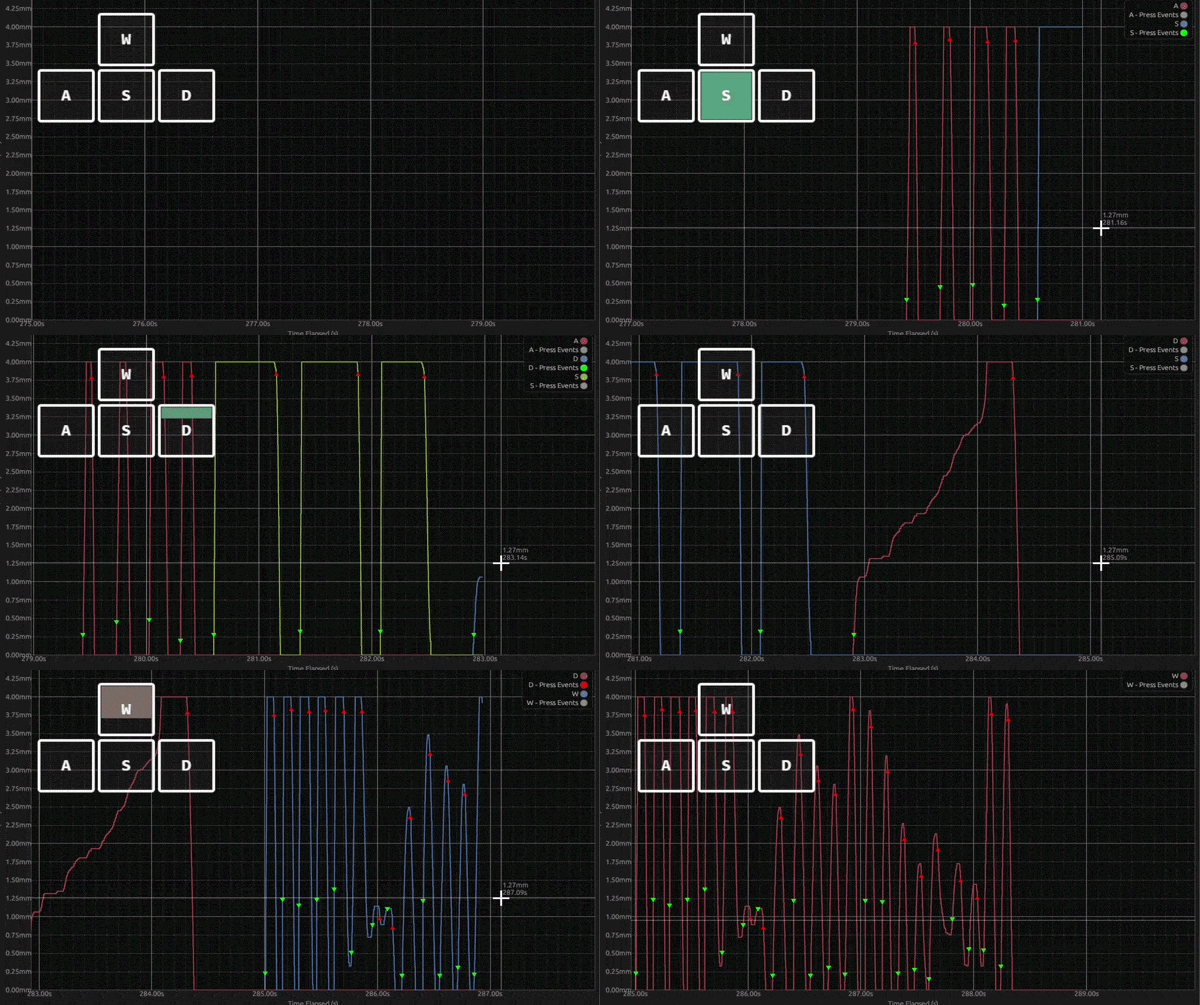
We recommend using our Analog Monitor tool.
This tool can provide a detailed view of how each Hall sensor is responding while performing the troubleshooting below
This can be useful in the following situations:
- Adjusting keyboard settings to see how the Analog Monitor responds
- Moving the keyboard to check whether external factors influence the sensors
- Troubleshooting infrequent issues, where small amounts of noise or slight signal bumps near the resting position may appear even when a key is not pressed, with larger spikes potentially triggering a phantom press
To try the analog tool, you can click this link: https://analog-monitor.wootility.io/
Once opened, connect your device and observe how the sensors are reacting.
Try the troubleshooting steps below to help narrow down the cause and potentially find a solution.
Testing for Power-Related Causes
Wooting keyboards or keyboards that use Hall sensors require a stable, consistent voltage to work correctly; otherwise, it can result in phantom presses.
The tests outlined below can help narrow down the potential cause if unstable power is the issue.
RGB Brightness Power Test
Since the RGB/LEDs can be one of the largest power draws on the keyboard, reducing their brightness may help if the Hall sensors are not receiving enough stable power.
As a test, adjust the RGB/LED brightness up and down and check whether the phantom presses issue changes to do this, follow the steps below.
- Launch wootility
- Select the tab “RGB Settings”
- Gradually lower the brightness
- Watch the analog monitor to see if the phantom presses decrease
If phantom presses are less pronounced at lower brightness, try the steps below to identify the cause.
USB KVM, HUB, or Dongle
If the keyboard is indirectly connected to the computer, first try connecting the keyboard directly to the computer, as some USB/KVM hubs may not provide enough power to the connected devices,
Try another USB-C cable
Use another USB-C cable, ideally a shorter one or the stock cable (if you’re not using this).
can help determine whether the current cable has enough resistance to cause voltage drops that reduce the power delivered to the keyboard.
For cable length, we generally recommend staying below 1.8 m (6 ft), especially with coiled cables, as they can be much longer than they appear.
For cable thickness, avoid cables that are too thin.
Try another USB port, or preferably another PC or laptop
We recommend testing the keyboard on another device, ideally in a different location. If this is not possible, try connecting it to USB ports further away from the current port, preferably ones ports with different colour coding.
The USB port may not supply enough power or may share power with other nearby connected devices, leaving little available for the keyboard.
Testing for External interference causes
Our keyboards use Hall sensors to detect the magnet inside each switch. These sensors can also be sensitive to EMI or other magnetic sources.
To check whether external interference is causing the issue, perform the test below
- While watching the Analog Monitor, physically move the keyboard around on the surface: left, right, forward, and backward. Then lift the keyboard off the surface.
If the keyboard's readings change when it is physically moved or lifted, this tends to indicate that the Hall sensors are detecting external interference. Below are some common causes.
Magnetic interference
This is the most common source of external interference, typically occurring when the keyboard rests on a magnetised surface or near magnets. Below are some common causes of this issue.
Magnetic Deskmat: These are commonly sold with a metal desk and may feature a magnet on the bottom to stay attached to the metal desk
Metal Desk or metal frame: While the desks themselves are generally non-magnetic, the metal they use may contain properties that can become magnetised if exposed to strong magnets, which may cause issues even after the magnet has been removed.
Magnetic cable management solutions: These magnets tend to be very strong, so it is advised not to place them near the keyboard if you have a metal desk or frame.
Laptops and tablets: These devices often contain magnets to detect whether the screen is open or closed, or to attach accessories.
Chairs with magnets inside the armrest: Some chairs use magnets to keep the armrests attached. If the armrests go underneath the keyboard and are later removed, this can cause calibration issues.
EMI (Electromagnetic Interference)
If the keyboard is resting on top of or very close to a device that can produce EMI, the keyboard may detect this.
Examples: wireless chargers, laptop Wi-Fi transmitters, and AC-to-DC power bricks,
Note: These devices must be in very close proximity to the keyboard. In most cases, the keyboard would need to rest directly on them to be affected, so if they are over 5cm away, it should not be a concern.
Still requires assistance
If the problem persists after troubleshooting, then reach out to us by sending a ticket here:
Wooting support - Switches are not reacting correctly or have phantom presses
We recommend providing the following information in the ticket.
- What Troubleshooting has been attempted
- Video or pictures of the analog monitor showing the phantom presses occurring
Note: We may request Photos of the PCB/Circuit board, focusing on the sensors or components that are related to the issue