Switches are linked and activate together
What this guide covers
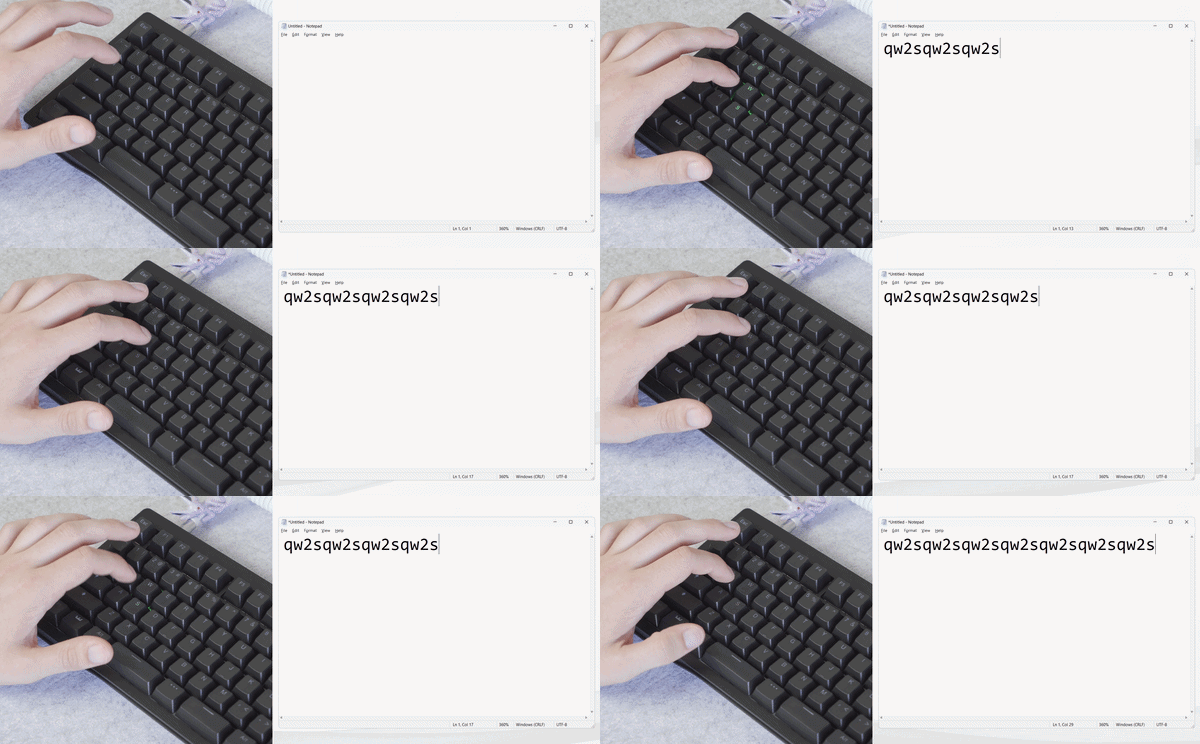
If your keyboard has the following symptoms
pressing certain switches causes additional or nearby switches to activate,
You may also experience some switches remaining unresponsive when pressed
Video example
Potential Causes
This can be caused by a few points listed below
-
Software
Software may attempt to trigger nearby switches or a sequence of switches when pressed, commonly caused by macro software
-
Switch-plate flex or movement
The switch plate is what the switches attach to. If this plate flexes, it can cause nearby switches to move, which can result in the keyboard treating this as a press depending on Actuation/Rapid trigger settings
-
Keyboard component fault or short
Our keyboard uses a multiplexer to handle multiple switch/analog inputs; this component routes this a single output. If this component is faulty, or has a short caused by a foreign substance can interfere with this process, resulting in incorrect switch output being detected.
Points to check before proceeding
Custom Keyboard modification - Tape mod
If you have performed a custom tape mod and the tape is applied tightly, or you didn’t insert switches during the application, this can cause the tape to affect nearby switches when pressed
To check, temporarily remove the tape mod and see if the issue is resolved
Note: If you wish to have the tape mod, we recommend pre-installing the switches and avoiding applying the tape tightly
Advanced keys - Dynamic keystroke (DKS)
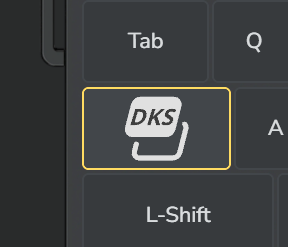
The keyboard supports a feature that lets a single key press trigger multiple keys.
To check whether this is bound and causing the issue, follow the steps below.
- Open Wootility
- Select the “Advanced keys” tab
- Check for an icon called “DKS”
- If present and you wish to remove it, right-click the icon and hit “Save to keyboard”
Getting started with troubleshooting
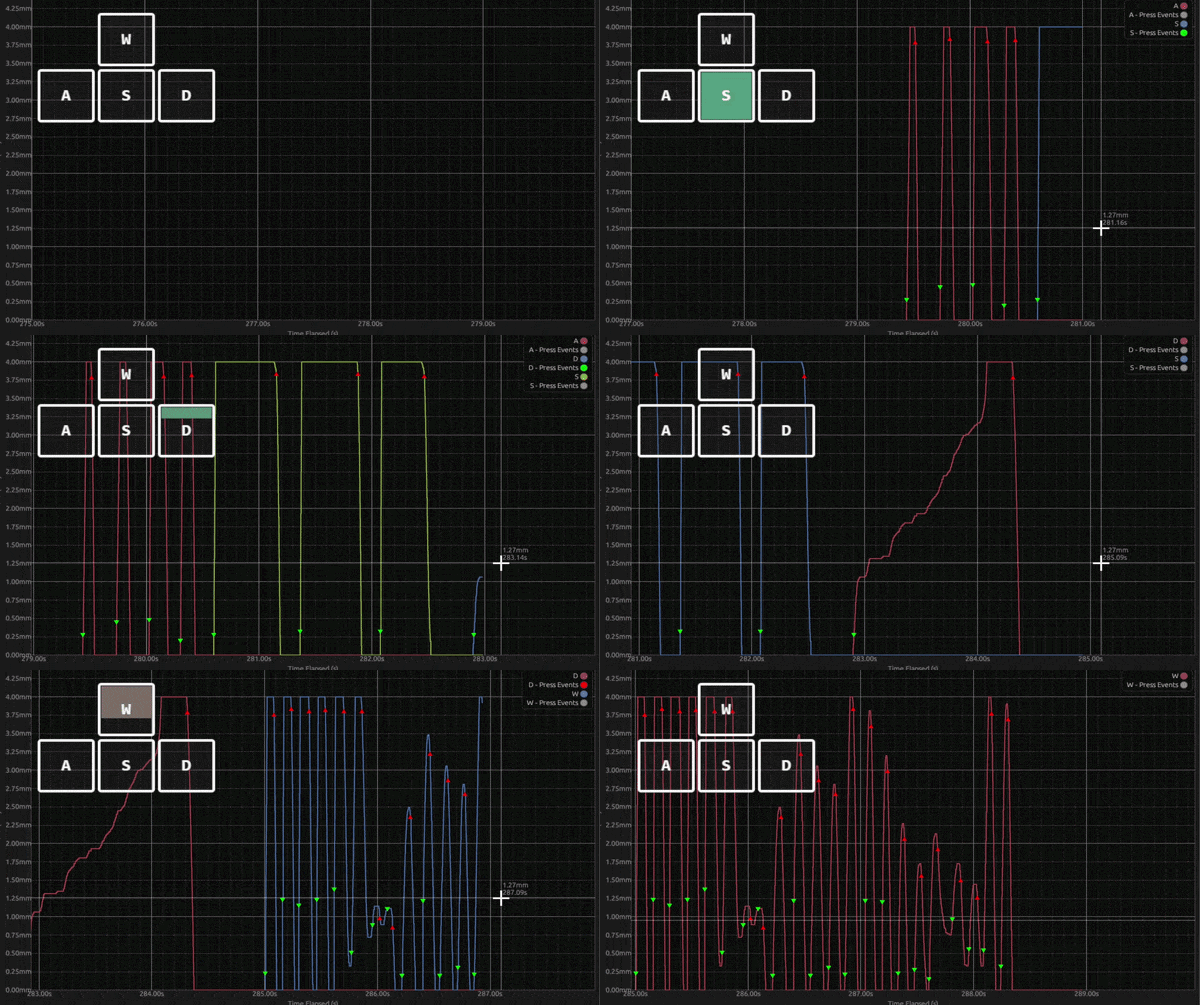
To understand how the keyboard is reacting and help determine the source of the issue, you can use the “Analog Monitor” tool
This tool will show the current position of each switch and which switch is detected as pressed
To try the analog tool, you can click this link: https://analog-monitor.wootility.io/
Once opened, connect your keyboard and observe how the sensors are reacting when you press the switch.
Note:
- If two or more inputs are detected and the lines perfectly overlap, the switches that are unresponsive do not respond in the monitor; skip to "submitting a ticket"
Video Example of how the analog monitor works and should behave
The keyboard detects other switches as pressed
It is recommended to try the test below to rule out switch plate causes. If the issue persists, follow the guide on how to submit a ticket for further assistance.
Checking the switch plate
If the switch plate is the cause, you can quickly test this by
- removing the keycap
- attempting to apply slight pressure to the switch housing (avoid pressing the stem)
- monitoring the analog monitor tool and checking if nearby switches are slightly pressed
Note for those who modified the keyboard
- Custom/third party switch plate: may have more flex than the stock switch plate and is recommended to revert to stock and check if this is the cause or ajust acutaitoon/rapid trigger settings accordingly.
- If you have removed or swapped the sandwich material between the switch plate/pcb, this can allow the switch plate to compress more than normal and it is recommended to reinstall this part.
Submitting a ticket
For further technical and warranty assistance, submit a ticket here: https://wooting.io/support?category=8&issue=46&faq=true
We may request the following information
- Video with the keyboard and analog monitor pressing the switch and nearby switches to show the problem
-
Pictures of the PCB and close-up pictures of the affected component sensors
The keyboard doesn’t detect other keys as pressed
If the tests show the keyboard not detecting the additional keys as pressed, then the problem is likly caused by the system or software. The method below can help check for common causes
-
Windows: Safe Mode
Launching the system into “Windows Safe Mode” will disable all non-Windows applications and can be the best method to rule out software that is causing problems.
-
Task Manager: Ending tasks
You can open Task Manager and attempt to end software not affiliated with your operating system and see if the function of the switch returns.
We recommend focusing on the following first:
- Recently installed software
- Macro software
Note: If you find the cause and still want to use the software, try checking if you can rebind the keys or reinstall the software to see if that resolves the problem.