Pressing a switch has no response
What is an unresponsive switch?
If pressing the switch shows no reaction or response from the system, this guide will help identify the issue.
Video example

Basic troubleshooting before proceeding
Calibration and external interfaces check
If a switch is pressed or if the Hall sensors detect nearby sources of magnetic fields during the power-up and calibration phase, this can result in limited detection or no detection when pressing the switch.
To check for both of these situations, we recommend following the steps below
- Disconnect the keyboard
- Raise the keyboard in the air
- While in the air, reconnect the keyboard
- Wait 3 seconds
- Check if the problem is resolved
Explaining the Test.
When the keyboard powers on, it performs a calibration phase to determine the current analog position of each switch. These values are recorded and saved to the keyboard and used for the “resting position” Once calibration is complete, the RGB lighting turns on,
The test above is designed to allow the keyboard to recalibrate in case a switch was pressed or other sources of interference were detected by the sensor that could affect the calibration process.
Key lock - “Windows key”
If the LED is off and the key is unresponsive, this could be related to a function called “Key lock,” which temporarily disables the key to avoid accidental key presses.
By default, this is bound to the “Windows key” and can be enabled/disabled by pressing the following key combination on your keyboard.
- Two HE,60HE v2, 80HE:
FN + Windows - 60HE:
FN + Caps Lock + Windows
Note: If you wish to remove this function, you can follow the steps below
- Open Wootility
- Select “Remap”
- Select “FN Layer 1” or for 60HE “, FN Layer 2”
- Right-click “Keylock”
- Press “Save to keyboard” located at the top right
Troubleshooting the keyboard
This Analog Monitor tool lets you see directly what the keyboard detects when a switch is pressed to determine if the system or keyboard is the cause of the problem.
To try this tool, open this link: https://analog-monitor.wootility.io/
Once it’s open, connect your keyboard and observe how the sensors react or don’t react when the switch is pressed.
Based on the results, follow the relevant section below:
- I press a switch, and the analog monitor doesn’t react or respond correctly
- The Analog Monitor shows the switch position correctly
Additional information on the Analog Monitor and how this tool works:
- To view the press/release event from the system, make sure the window is selected
- The line/position of the switch is reported directly from the keyboard
Video example of how the Analog Monitor works and should behave
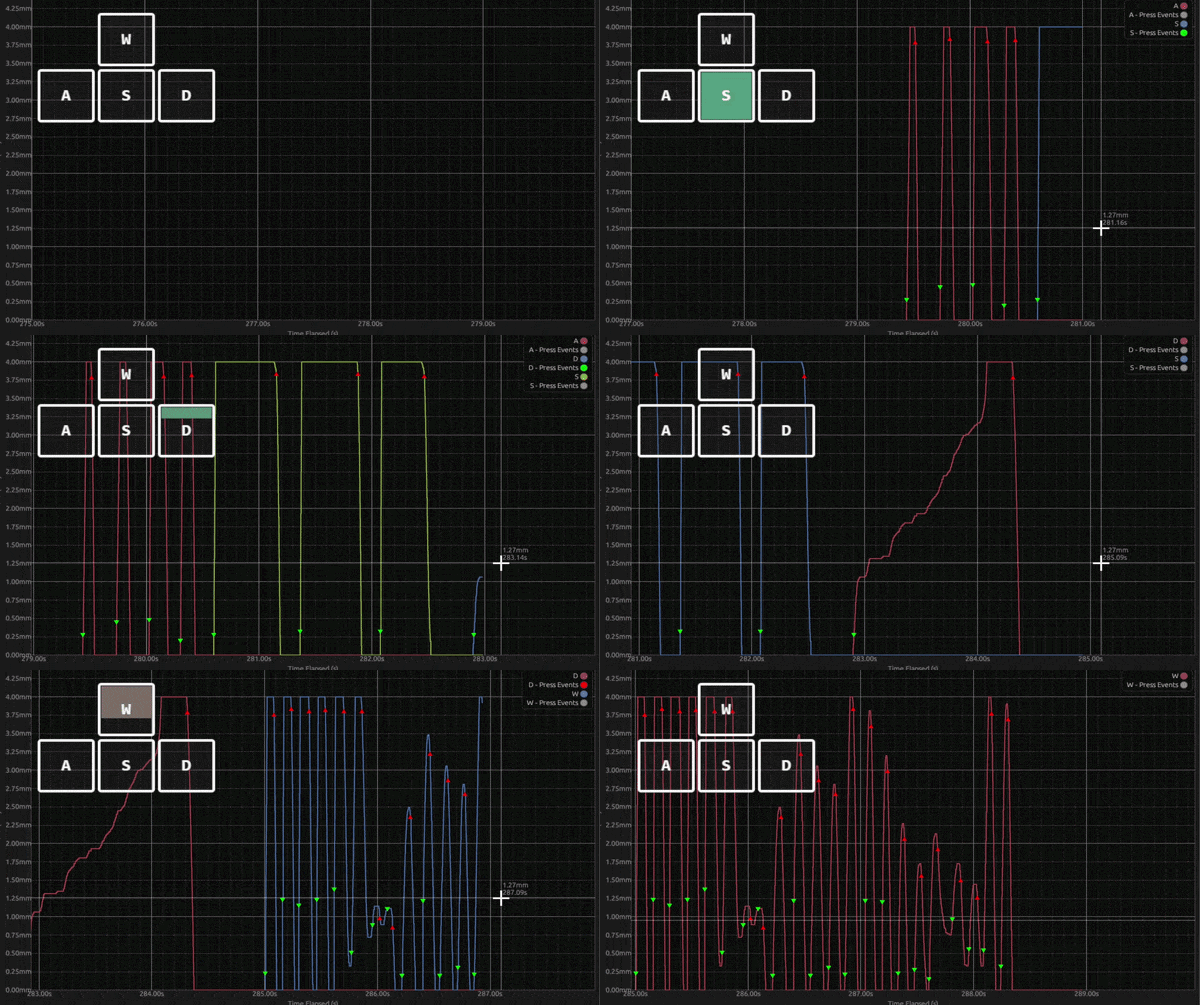
I press a switch, and the analog monitor doesn’t react or respond correctly
Submit a ticket for further technical and warranty assistance by clicking this link https://wooting.io/support?category=8&issue=46&faq=true
Note: We may request additional details, such as:
- A video of the Analog Monitor in view while pressing the switch and surrounding switches as a baseline
- Photos of the PCB/Circuit board, focusing on the sensors or components that are related to the issue
The Analog Monitor shows the switch position correctly
If there is no trouble detecting the switch position, this is likely caused by a few factors. The troubleshooting steps below can help narrow it down.
Analog Monitor lists “Unbound” for the key
If the Analog Monitor displays Unbound when a key is pressed, check if the key has a binding assigned in Wootility:
- Open Wootility
- Select the Remap tab
- Check whether the key is set for that location
All keys don’t react when pressed
This can indicate a driver issue, where the keyboard sends the press information to the system but it is not being processed correctly
in most cases, caused by a missing driver or an incorrectly assigned HID Keyboard Device driver
Troubleshooting
Performing a Restart/Reboot of the system may help resolve the problem.
Note: A shutdown may preserve the current system state and drivers.
Still not resolved
Follow this guide to perform a more thorough removal of all drivers and any leftover registry files to let the system reassign them again.
Devices Between the Keyboard and System - KVM
Some KVM devices detect the state of certain keys or a combination of keys to switch between devices, perform specific actions, or change the output, which could cause issues.
If the keyboard is connected to such a device, connect the keyboard directly to the system instead.
Software conflicts/issues
Some applications may try to detect the state of certain keys for their own purposes, for example:
- To open/close overlays
- To activate a macro
- To start or stop recording or other functions
This can sometimes cause conflicts, such as keys not registering in other applications, which can be more common for games that have anti-cheat software.
Troubleshooting this can be challenging, as it may be caused by any application currently running on the system. Below are some basic steps to see if you can narrow it down.
-
Windows: Safe Mode
Launching the system into “Windows Safe Mode” can disable all non-Windows applications and can be the best method to rule out software that is causing problems.
Note: If this issue “only” occurs in-game, this method may not show results, as most games can not run while Windows is in this mode.
-
Task Manager: ending tasks
You can open Task Manager and attempt to end software not affiliated with your operating system and see if the function of the switch returns.
We recommend focusing on the following first:
- Recently installed software
- Macro software
- Software that has an overlay function or listens to key inputs to function
Note: If you find the cause and still want to use the software, check whether you can rebind the keys or reinstall the software to see if that resolves the problem.